Add a Payment Button to a Page

After creating a plan, you can display it on your WordPress site using the plan shortcode.

Overview

After creating a plan, you can display it on your WordPress site using the plan shortcode.

The shortcode renders the PayPress payment card, button, donation form, subscription offer, or fundraising display depending on the plan type.

This lets you place PayPress offers on pages built with the WordPress editor, blocks, shortcodes, or many page builders.

Requirements

Before adding the shortcode to a page:

  • Create and save a PayPress plan.
  • Confirm the plan is active.
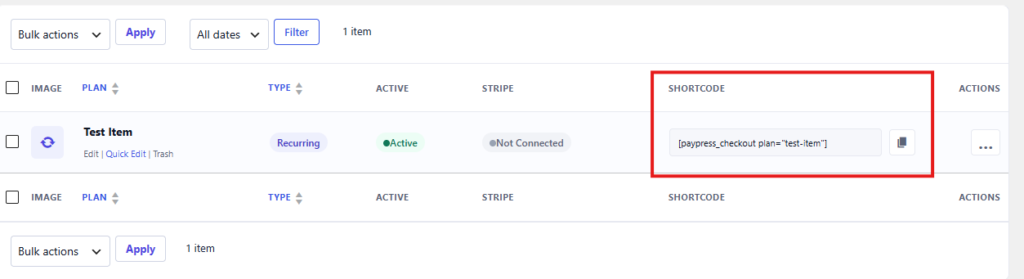
  • Copy the plan shortcode from the Plans table or plan edit screen.
  • Make sure Stripe is connected before testing checkout.

Steps

  1. In WordPress admin, open the PayPress Plans page.
  2. Find the plan you want to display.
  3. Copy the shortcode shown for that plan.
  4. Open the WordPress page where you want the payment button to appear.
  5. Add a Shortcode block, shortcode widget, or shortcode-friendly area.
  6. Paste the PayPress shortcode.
  7. Update or publish the page.
  8. View the page as a visitor.
  9. Confirm that the PayPress payment card or donation form appears.

Expected Result

Visitors should see the PayPress offer on the page.

Depending on the plan type, they may see:

  • A one-time payment button.
  • A subscription checkout button.
  • Donation amount options.
  • A fundraising progress section.
  • Payment Form fields.
  • Customer notes, if enabled.

Clicking the payment button should begin the Stripe Checkout flow.

Important Notes

PayPress is designed so public marketing pages can remain cacheable whenever possible.

One-time payment and subscription offers use the checkout launcher architecture. Donation and fundraising pages use hydration and launcher behavior to keep campaign state current while still supporting cached pages.

If you use a page builder, place the shortcode inside a shortcode-capable widget or block.

If your plan includes a Payment Form, make sure the form appears correctly before testing payment.

If you are adding a success page shortcode, that is separate from the plan/payment shortcode. The success page should be configured as part of your checkout return flow.

Troubleshooting

If the shortcode appears as plain text, confirm that it was placed in a shortcode block or shortcode-enabled area.

If the payment card does not appear, confirm that the plan is published and active.

If the button does not open Stripe Checkout, confirm that Stripe settings are saved and the webhook is configured.

If a cached page shows stale fundraising information, confirm that you are using the current PayPress donation/fundraising architecture and that your cache is not blocking REST requests.

Related Articles