Overview
Use this checklist before accepting real payments with PayPress.
The goal is to confirm that Stripe, PayPress, webhooks, plans, checkout pages, success pages, orders, refunds, and diagnostics are ready for customers.
Complete this checklist after your test payments are working.
Requirements
Before going live, make sure:
- You have completed at least one successful test payment.
- Orders are being created in WordPress.
- Webhooks are working.
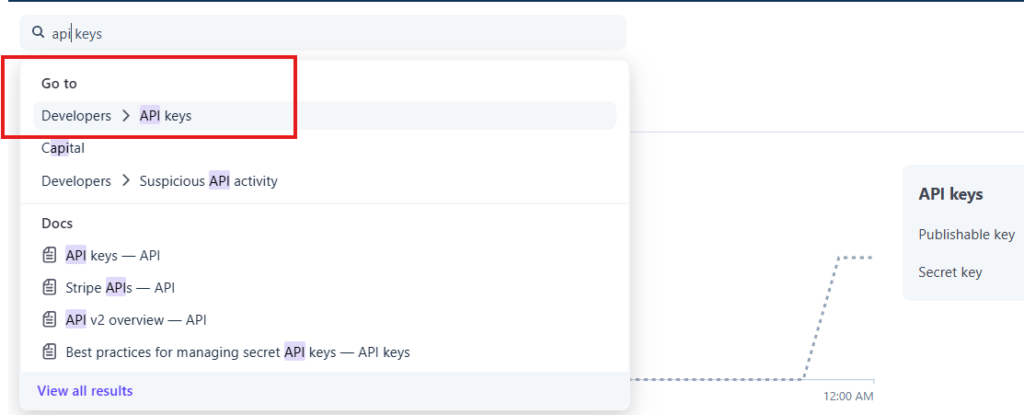
- You have access to your Stripe live API keys.
- Your site is publicly accessible.
- Your payment pages are published.
- You understand whether you are using one-time payments, subscriptions, donations, fundraising, or Payment Forms.
Steps
- Confirm test checkout works.
- Confirm a test order appears in WordPress.
- Confirm receipt or invoice links appear when Stripe provides them.
- Confirm the success page displays the expected confirmation.
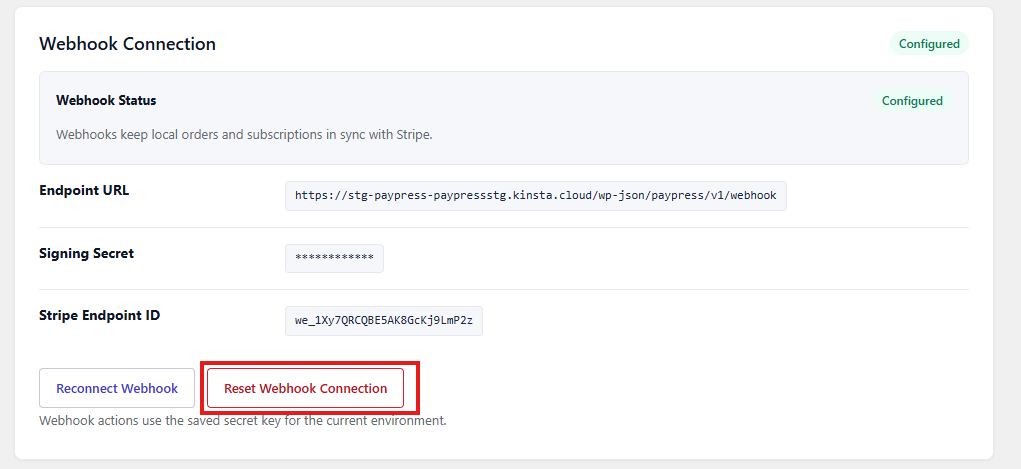
- Confirm webhooks are configured and processing events.
- Review Diagnostics for recent errors.
- Review each active plan:
– Plan name. – Amount. – Currency. – Payment type. – Active status. – Stripe product/price connection when required. – Donation or fundraising settings when applicable. – Payment Forms when applicable.
- Review public pages containing PayPress shortcodes.
- Confirm payment buttons open Stripe Checkout.
- If using subscriptions, test subscription checkout and review subscription records.
- If using donations or fundraising, test a donation and confirm campaign metrics update.
- If using Payment Forms, confirm form responses appear on Order Details.
- If using shipping address collection, confirm the shipping address appears on Order Details.
- If using customer notes, confirm notes appear on Order Details.
- If refund actions are enabled, understand who can access them and test in Test Mode first.
- Switch PayPress to Live Mode.
- Enter and save your live Stripe API keys.
- Create or confirm the live-mode webhook connection.
- Run a small live payment if appropriate.
- Review the live order in WordPress and Stripe.
Expected Result
Your PayPress setup should be ready to accept real customer payments.
Live customers should be able to:
- View your payment, subscription, donation, or fundraising offer.
- Complete payment through Stripe Checkout.
- Return to a confirmation page.
Administrators should be able to:
- View the order in WordPress.
- See payment status.
- Access receipt or invoice links.
- Review subscription information when applicable.
- View Payment Form responses when applicable.
- Issue refunds if enabled and eligible.
Important Notes
Test Mode and Live Mode are separate. A successful Test Mode setup does not automatically create live API keys or live webhooks.
Before promoting a page publicly, confirm that the page uses the correct live plan settings.
If multiple WordPress installations use the same Stripe account, PayPress ownership validation helps prevent cross-site order creation. Still, each site should have its own webhook endpoint and should be tested separately.
If you use caching, do not cache transactional endpoints such as webhooks, launcher endpoints, success pages, customer portal pages, or no-JavaScript donation routes.
Do not delete plugin data on uninstall unless you intentionally want to remove PayPress tables, settings, logs, orders, subscriptions, and related local plugin data.
Troubleshooting
If live checkout fails, confirm that Live Mode is selected and live keys are saved.
If live payments complete in Stripe but do not appear in WordPress, confirm that the live-mode webhook is configured.
If the wrong amount appears, review the plan settings before sending traffic to the page.
If the success page does not show order details, check that the success page shortcode is configured and that the webhook processed the checkout event.
If fundraising totals look stale, check caching and confirm REST requests are not blocked.