Overview
This guide explains how to connect PayPress to Stripe.
PayPress needs Stripe API keys so it can create Checkout Sessions, connect plans to Stripe products/prices, send customers to Stripe Checkout, and perform approved admin actions such as refunds or retrying invoice collection.
PayPress supports Test Mode and Live Mode. Test Mode lets you safely test payments without charging real cards.
Requirements
Before you begin, you need:
- PayPress installed and activated.
- Administrator access to WordPress.
- A Stripe account.
- Access to your Stripe Dashboard.
- Stripe publishable and secret keys for the mode you want to use.
Steps
- Log in to your WordPress admin area.
- Open the PayPress settings page.
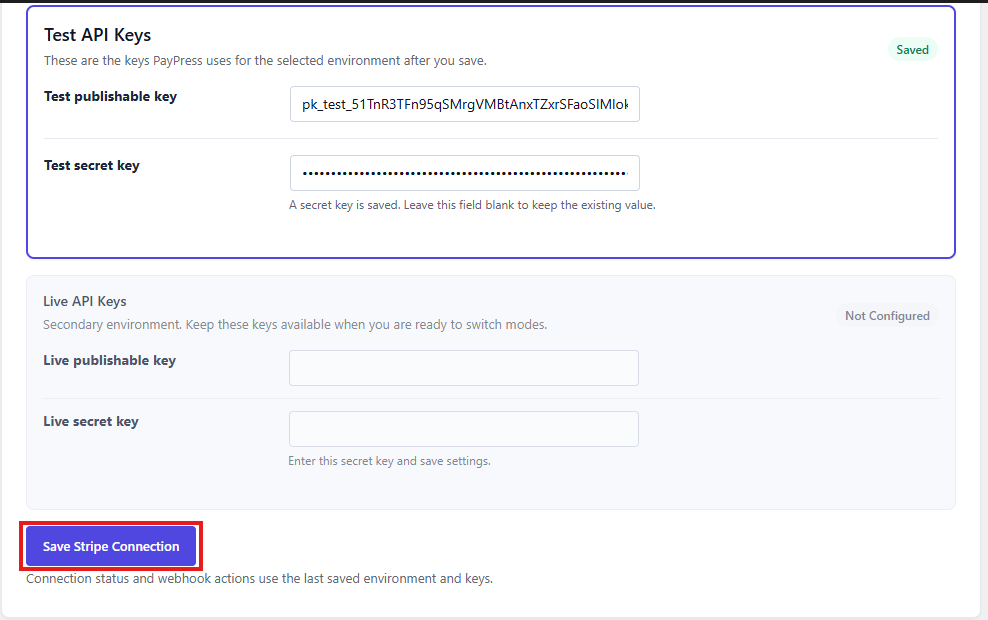
- Find the Stripe Connection section.
- Choose your mode:
– Test Mode for setup and testing. – Live Mode when you are ready to accept real payments.
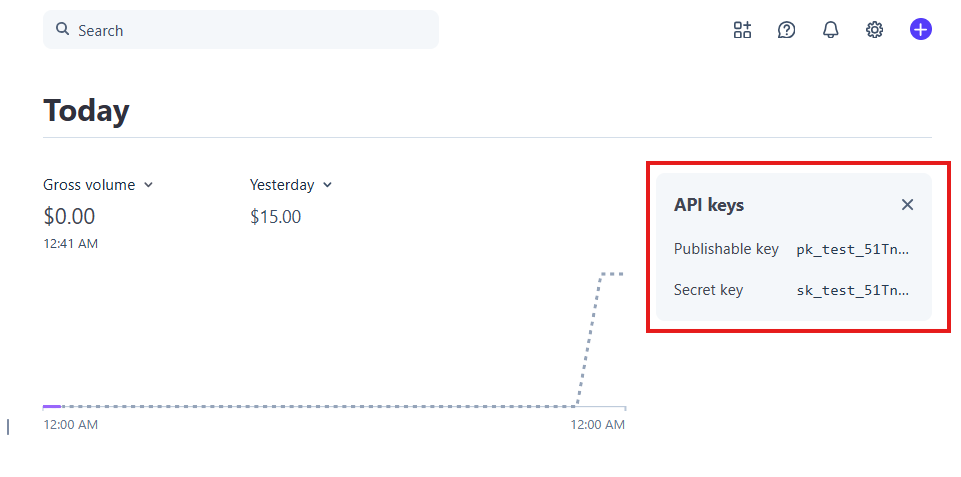
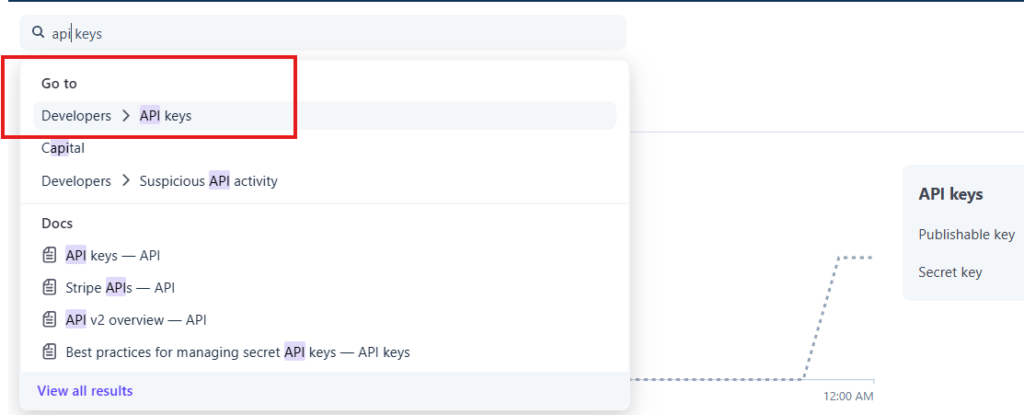
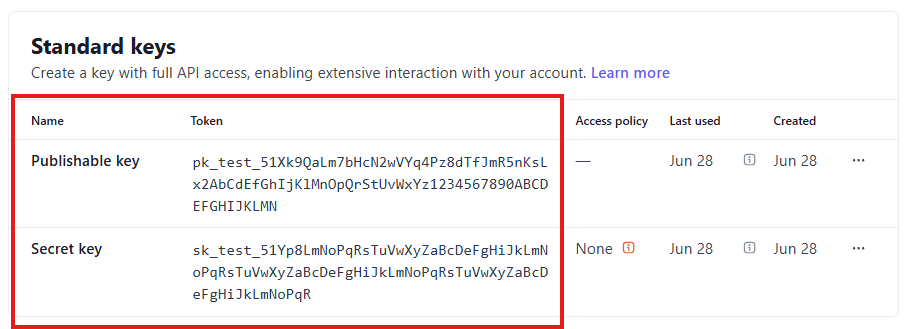
- In your Stripe Dashboard, locate your API keys.
- Copy the publishable key for the selected mode.
- Paste it into the matching PayPress publishable key field.
- Copy the secret key for the selected mode.
- Paste it into the matching PayPress secret key field.
- Click Save Stripe Settings.
- Confirm that the Stripe Connection status shows as configured.
Expected Result
PayPress should show that your Stripe API keys are saved for the active mode.
After your keys are saved, you can create the Stripe webhook connection and start testing payments.
Important Notes
Test Mode and Live Mode use different Stripe keys.
If PayPress is in Test Mode, it uses your test keys. If PayPress is in Live Mode, it uses your live keys.
PayPress does not verify your Stripe account by making a remote connection check on every settings page load. The status indicator is based on whether the required local settings are present.
Do not share your Stripe secret key publicly. Only paste it into trusted plugin settings inside your own WordPress admin area.
If you use the same Stripe account on multiple WordPress sites, each site should have its own webhook endpoint and PayPress installation identity. PayPress uses ownership validation to prevent one site from processing another site’s payments.
Troubleshooting
If the webhook creation button is disabled, save a valid Stripe secret key for the active mode first.
If test payments fail, confirm that PayPress is in Test Mode and that test keys are saved.
If live payments fail, confirm that PayPress is in Live Mode and that live keys are saved.
If you recently changed keys, save settings again before creating plans or testing checkout.